
Static IP Address.
how to get one..
This page describes how to assign a "Static IP" to your local computer.
If you are looking to get an external static IP, that is; a static IP for your whole internet connexion; see the notes at the foot of the article for more details, and also this post.
What is an IP address?
An IP address is like a telephone number that any computer can use to find any other computer in a network. All networked computers have IP addresses. Most have a static ip, that is, they don't change (for instance, at the time of writing, Google is 74.125.45.100, and typing https://74.125.45.100/ into your browser will take you straight to Google. That is Google's "public IP", aka. "external IP" (one of them), behind their NAT are probably thousands of separate machines, each with different "private" IP's (probably static, or more likely a mix of dynamic and static IP's), 192.168.1.1, 192.168.1.2, etc., we don't see those. But some IP's do change..
Home computers, by default, are set to get their private IP address dynamically from your gateway device (router), via dhcp, In other words, the router supplies a private IP address for your computer to use, temporarily (your router is probably doing NAT, too, and needs your computer to have an IP address, so it knows where to send your data packets).
However, dhcp is not usually an ideal setup; if there is any interruption in the computer's network connexion to the router (you reboot your PC, for instance), a completely new IP address may be assigned1.
Fortunately, there is a way to have the best of both worlds, called a "fixed lease" (aka. "static lease"), more details below.
For general (beginner's) use, dhcp is just fine, because it's easier; generally works "out of the box", requiring no configuration at all. But if you want to do more; run servers, p2p applications, interesting communication devices, etc, you'll be creating port forwarding/NAT rules on your router, to direct incoming traffic to a particular computer (the one running the server), and if you want those rules to be effective past your next reboot, you will need to get a static IP on your computer, so that the incoming data packets can still find you. Imagine the fun your friends and family would have contacting you if your telephone number changed every day!
okay, let's do it!
Okay, so you understand why you need to get a static IP, (apart from the obvious "cuz I want to forward my ports!") it's time to move on to the how part.
"Private" IP addresses usually begin with 192.168** and must be on the same "subnet" that the router is on, in other words, 192.168.1.something, and NOT 192.168.4.something. Only the last number will be different from the address of your router which by default (at least for Voyager routers), lives at 192.168.1.1. 192.168.0.1 is also common.
** There are other private ranges, too, but most people don't need to know about those,192.168.1.somethingis what most folk use, and though thousands of millions of machines in the world have192.168.1.somethingas their private IP address, they don't interfere with each other because they are behind NATs and other gateways; from the outside, we only see the public IP address, aka. "external IP".HOWEVER, if your router uses
192.168.0.something, or10.0.0.something, or something else from the private IP ranges..
10.0.0.0 - 10.255.255.255

			172.16.0.0 - 172.31.255.255

			192.168.0.0 - 192.168.255.255
..then don't hesitate to use THAT instead of the
192.168.1.somethingaddresses I use in my examples, that's what most routers use, but not all. Do check.The best way to know what subnet your router uses, and thereby which IP to use, is to look and see what IP it has currently assigned to your computer. In Windows, it's in the Support tab of the connexion's Status dialog. A
netstatcommand will get you the same information (and more) on most platforms, perhapsnetstat -n. Your router's web interface will likely have all this information, too.
If your router has USB, it has probably already grabbed 192.168.1.2 for the USB connexion, so that leaves you with any number between 192.168.1.3 and 192.168.1.254 to use for your private computers to use as static IP's, one unique number per machine.
Remember to disable dhcp in your router before you start assigning static IP's.
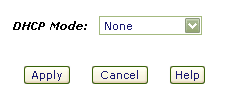
Alternatively, create a new dhcp range somewhere away from your regular static IP's, handy for guests and what-not, perhaps 192.168.1.50 - 192.168.1.99
Fortunately, assigning a static IP is very easy to achieve, and the same principle applies to every computing platform, the only real difference being where to apply the settings. I'll start with the best place, your gateway router..
At The Router..
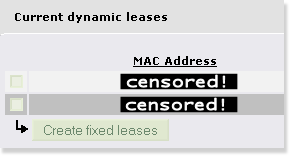
Many routers allow you to create something called a "static lease" or "fixed lease".
I recommend you try this first!
Essentially, this ties a MAC address (the physical address of your network card, theoretically unique to your card) to a particular IP address, so it always gets assigned the same local IP address. It's like a static IP, but with NO setup on the computer required. This has many advantages.
Firstly, you don't have to mess with ANY of your computer's network settings, ever. Because the router is always going to dole out the exact same address to that computer (with that particular MAC), the usual DHCP settings will work fine. Your computer asks for any address, and always gets given the exact same one.
It's not possible to give many specifics, because each router is different, but I can tell you that if you use IPCop as your gateway (A Very Good Idea), it's as simple as clicking one of connexions in the "Current dynamic leases" list, and pressing "Create fixed lease", in the DHCP server page. Two clicks, and you're set for life!
In some routers it's called "Address Reservation". Whatever its name, if it exists it will likely be in your local (LAN) network/IP settings tab/section.
In OpenWrt, the settings you need are in Network Tab, "DHCP and DNS" sub-tab.
I prefer to edit the OpenWrt config files directly (it's so easy these days!), adding something like this..
/etc/config/dhcp## Fixed Lease..
#
config host
option name 'myhost'
option mac '03:E5:A1:B6:10:C4'
option ip '192.168.0.20'
Whatever router you have, it's worth getting this setup (and then making a backup of your router's settings - there's always a tab for this!). You even can reinstall your computer's operating system, reboot, and there is your static IP again! "Zero Config".
If for some reason this isn't available to you, you can set a Static IP Address on your computer..
Windows®..
The dialog you are looking for is here.. Control Panel >> Network Connections >> Local Area Connection >> Properties >> TCP/IP >> Properties
*phew*
In other words, open the control panel, open Network Connections, right-click the "Local Area Connection" (unless you've renamed it to something else) and chose "Properties", then (in the "general" tab) select "Internet Protocol(TCP/IP)" and click the "Properties" button. Check the "Use the Following IP address" checkbox and enter your desired IP address. If you use 192.168.1.3 as your IP address, the dialog will look something like this..

..which is a clever screencap, showing you just how to get there. When you're done, okay everything to close all the dialogs. It's smart to use 192.168.1.3 as your address, especially if you plan to use any of the ready-made script kicking around here.
I you are plugging your computers into a network switch (Good Idea!), it's also smart to plug each machine into its corresponding CAT-5 socket, router (192.168.1.1) into the first, 192.168.1.3 into the third, and so on, so you can see which is which at-a-glance.
Mac OS X..
What you need is in the "Network" dialog of the System Preferences, and will look something like this..
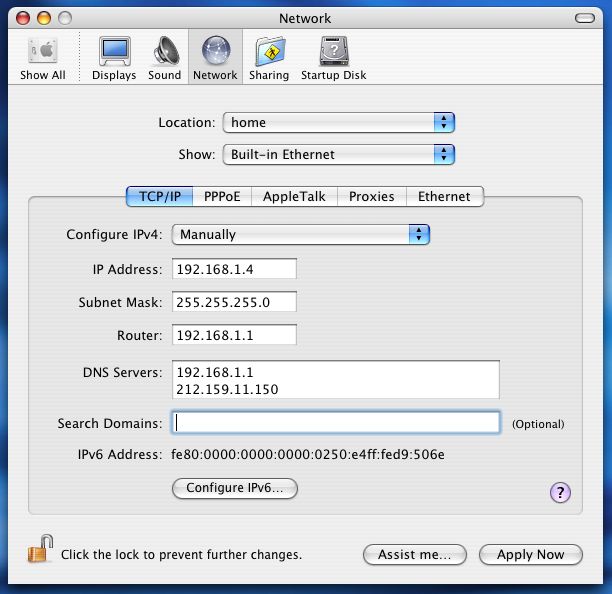
Simply click the drop-down menu for "Show", and choose "Built-in Ethernet" to get that screen, enter all the details as above. Click "Apply Now", and you're done!
Did you notice that on the Mac, you enter the Router's address into a space labelled as "Router", whereas, on Windows, you enter it into a space labelled "Default Gateway"? But then, the space for DNS servers is clearer in the Windows box. Seems we all still have a lot to learn from each other.
Linux..
This probably isn't necessary, most Linux users know how to alter this stuff, but I suspect one or two may not. Usually you need to edit some plain text file (as root). On some Linux systems, the settings will be in /etc/rc.d/rc.inet1 (or whatever interface you are using), or possibly /etc/network/interfaces. I guess it might look something like this..
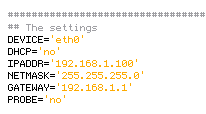
Usually, your distro will have a utility for setting up your network, and one of the first things it will ask you, after you tell it you want "manual" and not "automatic" configuration, is what IP address to assign to the machine. It's usually called something like "Network Configuration", or "inet configurator" or whatever. you'll find it! In a shell you can probably do "netconfig", "netcfg", "Ifconfig", "neat", or "netset" (depending on your distro). Same story for UNIX, Solaris, BSD, etc..
That's it!
From now on, your machine will always be reachable at your chosen address. NAT rules will be permanent, and you can dabble in all sorts of interesting and esoteric communications devices, servers and p2p applications.
If you have a few computers on your private network (LAN), you might want to consider giving them all names to go with their permanent addresses, so you can reach them by typing "workshop" or something into a telnet session/web browser/whatever. You could telnet to your router by simply doing telnet router, for instance. If you develop web sites, this is near essential. See here for more details.
If you like, you can leave feedback (I thought it was about time this page had comments of its own - folk are coming straight here from the search engines, and it's getting popular!). If this page didn't help you, tell me about it!
Have fun!
;o) corz.org
notes..
If you were actually wondering how to get a static IP for your whole internet connexion; aka. external IP, aka. "WAN IP"; perhaps to run some live web site or interesting server from your home or office, well, that's not something we mere mortals can do from our side of the router. You will need to talk to your ISP. Note: Not all ISP's offer this service, and those that do will usually charge a premium. However..
Most people do not need this!
Even those that think they do, or have been told they do. Instead, perhaps you simply need to..
Note: DynDNS no longer offer a free service to new customers. And No-IP now require you to manually confirm your domains every 30 days, which is complete nonesense. So unless you want to pay for your DDNS or lose your domains the next time you are on holiday or just forget, I recommend the aforementioned duck dns, freedns.afraid.org, or zoneedit.com, instead.
Note: If you do use zoneedit, remember to check your subdomains aren't available to the "pool"!
Note, too: you can always get your current external IP address, a-la "what's my IP", except in plain text, right here. Very handy for automatic shell scripts, and more. Right now, it's
216.73.217.61.
1. This is very similar to the way you get a new external IP whenever you dial-up to the internet (some folks still do that) or disconnect your ADSL for a few minutes2 (less scrupulous net citizens use this "feature" regularly!).
2. Although it's usual to get a new external IP when you reconnect your DSL, it's not guaranteed. With some ISP's it happens rarely, with others you need to disconnect for a few minutes or more, with some ISP's, you always get a fresh IP with each connect, no matter how quickly you do it. One thing is certain, though; unless you are paying them for a static IP, your current external IP address will change!
3. Remember, your external IP, and your local computer's IP, are two totally separate things (well, in this context). Almost no one needs a static IP for their external connexion, but almost everyone who wants to run peer-to-peer applications, ftp servers, and so on, will need a static IP for their local computer. The former is supplied by your ISP, the latter is down to you.
Useful Links..
FAQ..
What is an IP Mask? And how do they work?
The IP Mask simply describes which parts of an IP address are not going to change.
IP addresses are currently 32 bit, expressed as four sets of 8-bit numbers (0-255), or "octets". Simply, 255 means none of the bits can change, 0 means all of the bits can change (it can also be any number in between). What sometimes confuses, is that IP Masks can be expressed in two different ways..
IP: 192.168.0.<some valid number here>, Mask: 255.255.255.0
and..
192.168.0/24
Are exactly the same. While the first is, if you understand what I've said so far, fairly obvious; the second needs a little explanation.
If you remember that IP addresses are 32 bits, 4 sets of 8-bit numbers, you might realize that the second number simply states how many of those bits will be masked; in this case, 24 of the 32 are masked (cannot change), which is the first three sets, i.e. 255.255.255.0.
Any address using this mask, will be 192.168.0.something
See?
What's the difference between a public and private IP Address?
We did this! Okay, in short, your GATEWAY has your Public IP address, and your desktop computer (and any other machines inside your home/organization) have private IP Addresses. Simply put; it's outside and inside. Anyone "out there" can see your public IP, but only machines inside your own network know each other's individual private IP addresses.
.. So, let's say a packet of data from "out there", is trying to reach your machine; it could be a legitimate connexion from a client, maybe an FTP client, or some game player, or script-kiddie, or you trying to access your bedroom's WebCam, or whatever. It leaves their machine, and starts its journey, hop-to-hop, attempting to get to yours.
"Out There", is the internet. When you first connected to the internet, via your ISP's backbone, they assigned your connexion an IP address (or more than one, in some cases) from a large pool of IP Addresses they own. Any machine sending you a packet of data can reach you at this IP.
Some folk pay for a static IP, most folk get a dynamic IP; that is, whatever's currently available from the ISP's IP pool, but either way, whatever IP your ISP gives your connexion becomes your Public IP Address. Every time you access a web page, or FTP site, or game server, or announce yourself to a torrent tracker, or anything; that is the IP Address they see at the other end of the connexion, and that is the address they will send the packets back to. This is your Public IP Address.
Up until that packet reaches your gateway machine, it is in the public domain. Anything could happen to it. Once that packet hits your gateway machine, it enters the private domain and what happens next, is up to you..
If your gateway machine is a router, or better yet, a dedicated gateway appliance like IPCop, or Smoothwall is, then you have an array of possibilities. The packet may be on a port you don't know, or don't allow, and may be immediately dropped by your gateway's firewall.
Or it may be on a port your gateway machine recognizes, like the return data from a web page you requested, or your torrent port, or whatever, and the gateway device will have been programmed to forward that packet on to a Private IP Address, another machine inside your network, your desktop, or wherever. The gateway's firewall usually does most of this automatically, sorting out which machines asked for what data, but can also be programmed to forward specific traffic to specific machines, for example, when we create port-forwarding rules for P2P clients on our desktop computers.
Your Private IP Address is known only to machines inside your own network. If you have lots of machines inside your network, they will each have different private addresses, and with a secure gateway, none of these addresses can ever be seen from the outside (unless you hand it out, for example, in your email headers).
This is why if you broadcast your Private IP to a distant server, e.g. 192.168.1.3; the requested data would never return, having been sent to a machine most likely sitting in the exact same building as the distant server, if such a machine even exists.
I want to host a REAL domain! A REAL site! I NEED an external Static IP!.. Don't I?
No, so long as your hardware (computer/network/connexion/bandwidth allowance) can handle whatever kind of site you plan to host, it's easy enough to point a proper TLD* at a dynamic IP address. While not recommended for mission-critical applications (there will always be a brief spell after you are assigned a new IP, where the name still points to the old IP - these days increasingly briefer, as DNS systems improve), hosting a "real" domain from a dynamic IP is most definitely doable.
Once you have purchased (registered) your domain name, you simply need a way to keep it in sync with your ever-shifting dynamic public IP address.
Check out zoneedit.com, a free service which does exactly that. Just like dnydns.org et al, you run your DUC and it keeps your domain name pointing at your IP address. And if you head along to namecheap.com, you can even register your domain, and setup dynamic DNS all at the same time. This is a fine place to add that I consider namecheap to be the best domain registrar in the world.
* okay, technically only the "com/org/net/etc." part is the actual TLD, but the acronym has dropped itself into common parlance meaning "a proper (not-sub) domain", like "corz.org" or "ampsig.com" is. Okay, I might have pushed a little. ;o)
<Insert any question here>
When troubleshooting network issues, I usually get my solutions following one simple rule.. "Think like a packet of data". As breathtakingly simple as this sounds, imagining yourself as a packet of data, traveling from A to B is the fastest way to figure out where the trouble lies. That's all there is to it! Try it; you will not be disappointed with the results.
Troubleshooting..
A number of things can go wrong when trying to configure a static IP on your local machine. The most common issues are..
A second network adapter on your computer already has that IP address assigned to it. Note: Firewire (aka. 'IEEE 1394') adapters usually get automatically setup as network adapters in Windows. Unless required, it is generally best to disable these interfaces.
Another computer on your local network already has the IP you are attempting to assign.
Another Very Good Reason to configure all your static IPs at your router, and leave the individual puters' default DHCP settings as-is.
You do not have sufficient security privileges to make such a change (i.e. you are not the Administrator/admin user)
Check these things, and if you're still having difficulty setting up a static IP on your local computer, feel free to leave a question below. It might be something other's could use an answer to.
Before you ask a question..
Firstly, read this at least once in your life. I insist!
NOTE: THIS IS NOT A COMMUNITY. And I am not your free tech dude.
If you can't be bothered to read the article, I can't be bothered responding. Capiche? I do read all comments, though, and answer questions about the article. I'm also keen to discuss anything you think I've missed, or interesting related concepts in general.
Questions which having nothing to do with local Static IP addressing will be deleted, which also doubles as your answer! This also goes for questions asking for an email reply.
If you are still sure that you want to post your own, personal, tech question, then please ensure that you first, either..
a) Have read the article (above) and have tried "everything" yourself; or else..
b) Pay me. The PayPal button is at the top right of the page.
Hey I like your page and thanks for the useful and straight forward explanation...I'll be back!
very good, simple clear, not too many words.
but dont know what to do with alternative dns, left it blank
maikl, blank is fine for the alternative DNS server; your router/gateway should have the received an up-to-date DNS server address list when it connected to your ISP, so its address alone will suffice. However, it's not a bad idea to put the address of a known good DNS server in there..
It probably wouldn't be wise for me to post an address here, but with a smidge of inginuity or some Googling, they are easy enough to locate. Your ISP will have many, as will all other ISP's, web hosts, large institutions, etc. Actually, I believe that opendns.com welcomes "load-testing" on their two main resolvers..
208.67.222.222
208.67.220.220
If anyone knows different, do let me know.
Another strategy is to put the address of a local caching DNS server, or vanilla Linux box with a BIG list of DNS servers in its /etc/resolve.conf file. But blank is also fine.
Jesse, you're welcome back any time!
;o)
(or
Article is simple and informative. Though I had an idea about this, but couple of things additionally were useful and have corraborated my understanding
I HAVE A CLUB AND I WANT TO WATCH MY CCTV SYSTEM FROM HOME. IT HAS THE CAPABILITY BUT IVE BEEN TOLD I WILL NEED TO PAY MY PROVIDER TISCALI FOR A STATIC IP ADDRESS IS THIS THE CASE.
THANKS MC
Jeez! NAE NEED TO SHOUT!
As to your question, for a donation of only one month of Tiscali's static IP fee ( well, it can't be said I don't try! and you did say you had a club
NO! THIS IS NOT THE CASE!
I'm shouting in case the reason YOU shout is that you are also hard of hearing!
What you really need, in a nutshell, is a way to "find home", or in your case, "find the club"; somewhere to point your client program (the cam viewer application). Tiscali, and other ISP's, will argue that as their regular DSL connexion changes IP on every connect (as explained in my intro, above) it is not possible to run such servers from your connexion, and you must "upgrade" to a static IP. This is not so.
Check the notes at the very end of the article - which I pre-emptively added this very morning! - because I had a feeling that folk might come here wondering about the other kind of static IP, the kind on the outside of your intenet connexion. Rarely do people need this, and I'm glad you've given me a chance to explain why. note no. 2..
Perhaps you simply need to get yourself a dyndns.org or no-ip.com address, and a DUC
What dyndns.org and the other "dynamic dns hostname" providers do, is give you a fixed, permanent hostname that always points to your IP, no matter what it is. To make this magic happen, all you need is a membership at dyndns.org or no-ip.com (which is free, for up to five host names - there are others), and a DUC, aka. 'Dynamic Update Client'.
DUCs, just like Ducks, come in all shapes and sizes, from wee shell scripts that run in the background on a spare Linux box in your home, to cute windows tray icon thingies that flash and animate themselves with all sorts of annoying status messages whenever you reconnect. But they all have one simple task, namely to inform dyndns.org whenever your IP address changes. Generally they will do this automatically whenever you login to your ISP. The more automatic, the better.
If you are fortunate, your router (the Voyager routers can do it) or firewall device (like IPCop) will have built-in DUC capabilities, and as they are the boxes that connect and disconnect you from your ISP, are in a perfect position to know exactly when you have just received a new IP, and immediately inform dyndns.org, who feed your new IP address to their name servers, and within a couple of minutes, from anywhere in the world, clubcam.mine.nu (or whatever you decide to call it) will point to your club's new IP. Ideally a DUC should be a set-once-and-forget affair.
At home, you simply enter clubcam.mine.nu into your cam-viewer, with the correct port, password, etc., and your home! or rather, erm, club!
Have fun!
;o)
(or
Informative and simple, awesome guide, thank you.
I thought a static IP address was something that you would have to pay your ISP for. Isn't that the way it works?
Yup, that's the way it works. Though most folk don't need a static external IP (see my big post, a couple of posts up, and the notes under the article), and paying for one would be a waste.
But this page isn't about that; it's about setting up a static IP for a machine in your local network, mainly to get peer-to-peer applications working full pelto, BitTorrent, ftp servers and such-like. It has nothing to do with your external IP.
Inside your own network, at this side of the router, you can do whatever you like, even be microsoft.com, and all for free!
;o)
(or
I came across this page while conducting a search on IP addresses because my wireless internet has ceased to function out of nowhere (one day, it stopped working and no amount of repair attempts have fixed it for the past week...), and it is because "TCP/IP cannot be enabled"...I can't find my IP address and neither can my wireless programs! Would following the instructions on this page fix my problem and allow me to connect to wireless? (please say yes!)
In a broad sense, this page could help. If you know what an IP is, and how to change it, that's a start. "TCP/IP cannot be enabled" sounds fairly serious. I've not seen that exact error (that is the exact error you are getting, right?), so I can't be certain of the cause. Have you consulted your system logs for more specific details?
I have very little experience of Wireless networks (I basically don't use them, don't trust them) but if it were my setup, I wouldn't wait a week if the usual repair operations didn't work, I'd reinstall every network component from the ground-up, especially my wifi card, and work from there.
For tracking down hosts on a local network, check out Angry IP Scanner, a well-handy wee tool.
Be linear, logical and thorough, and you can track down any networking issue. I generally recommend folk imagine themselves to be a packet of data travelling through the system, see the route you have to take, and all the steps and hops in the way; makes troubleshooting easier.
Good luck!
;o)
(or