Batch Runner
 Run multiple programs in a batch..
Designed for testing, useful for all-sorts!
Welcome to Batch Runner, the simple program that enables you to run lots of other programs, in one big batch.
While originally designed for running test suites on in-house applications, Batch Runner proved itself highly useful for all sorts of jobs where you need to run two or more programs one after another, or the same program over and over with different parameters or switches.
The guys over at FEI (makers of high quality electron microscopes) asked me if I would add some features they wanted for running test suites on their products, and so the first incarnation of Batch Runner Pro was born. Since then, many new features and capabilities have been added, making Batch Runner Pro an extremely powerful and versatile tool for batch testing.
These days, Batch Runner FREE and Batch Runner Pro are one app: Batch Runner, containing all the features of both for free.
Intuitive and simple, powerful and reliable - Batch Runner can have your test suite up and running in seconds, and will happily run for weeks and months, longer, effortlessly churning through millions of test commands, collecting and logging results.
How does Batch Runner work?
Batch Runner's operation is extremely simple. The main GUI/window is a list of commands in the current batch, and a few controls for you to switch between different batches, run the batch, and so on..
Batch jobs are stored in Batch Runner's ini (configuration) file, and can be created, edited and deleted there, or from within the main GUI. You simply select a batch, and which commands you would like to run (all, by default), and then click Run batch!.
You can configure and store any number of different batch jobs, with any number (well, thousands) of commands within each batch. Commands (program paths, with any optional switches and parameters) run consecutively; when the first completes, Batch Runner starts the next, and so on, until all the selected commands have completed.
A log of each batch is created at the end of the job, recording the name of the batch processed, status of each command; success, fail, exit code, error code, time taken, etc.
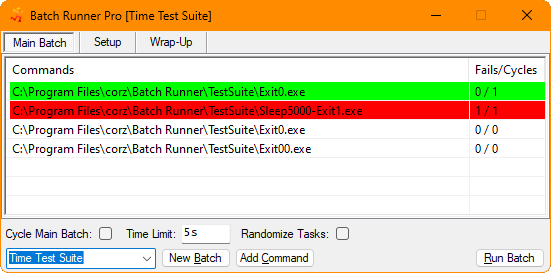
Click the New command button to add a new command to the current batch. The add new command.. dialog appears for you to enter whatever commands and parameters you need, as many as you need.
You can drag and drop applications, folders, and files onto this dialog to have their paths pasted automatically into the input - building complex commands with switches and optional parameters is quite painless. You can even drag in multiple items (Batch Runner will put spaces between the items, so you don't have to).
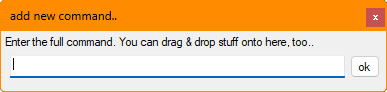
The command list has a context menu; you can right-click it and do stuff, edit selected commands, delete commands, and so on. Between all these controls, you should be able to do pretty much everything you need.
Apart from delete batches, that is. To do that, hold down the SHIFT key when Batch Runner is active, and the New batch button will switch to a Delete batch button, which will do exactly that. Careful now.

Note: the edit dialog behaves exactly like the add new command.. dialog; you can drag and drop stuff onto it, etc. It also shares the same dimensions and position, so wherever you put one, the other will also be, the next time you use it.
Pro features..
"Pre" and "Post" tests.
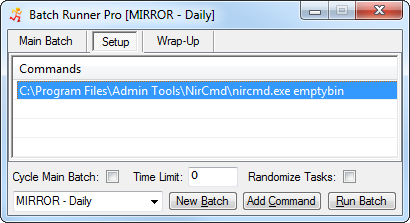
Batch Runner can run three individual sections of commands, aka. "tasks". A "Setup" section, which runs before the main batch, and a "Wrap-Up" section, which runs after the main batch.
These three sections each have their own tab which works almost* exactly the same way as the old Batch Runner list, except there are now three of them. (*it now has much more functionality - see below)
The names of the sections are also configurable.
Batch Cycling.
The main batch can be looped. You can set also the overall duration of the main batch. Setting a duration of 0 (zero) instructs Batch Runner to keep cycling the main batch tasks until the user (or some catastrophically failed task) tells it to abort.
Random Cycling.
By "random", I mean computer-generated random, which would be pseudo-
random. You probably don't have the computing power for truly random numbers, if such things can even be actually generated. However, it's "random enough" for our purposes, enabling you to create more realistic test suites. NOTE: This even works if you are /not/ cycling the batch, Batch Runner will run through the tasks randomly until every task has been completed ONCE (unless the time runs out in the middle, of course).
Also note, Batch Runner can disable the randomize and other options so they won't appear in the GUI - this prevents undernerdlings from accidentally altering your batch's randomize and other settings, be they enabled or disabled in the global or per-batch scope..
Per-Batch Options.
Most of Batch Runner's preferences have a "master" and "per-batch" setting. New batches, or batches without their own options, inherit the master settings. Any changes you make to these settings when a batch is loaded get stored (and loaded again) along with the batch.
This happens automatically for the (minimal) GUI preferences (if made available). You can also add any options manually (inside your batch in the ini file), where underlings can't get at them!
Counters.
While cycling the main batch, Batch Runner will keep a tally of the total number of times a task has completed, as well as the number of times a task failed (returned a non-zero result). These tallies are updated live in the GUI and log during a batch run. A simple summary of passes/fails/errors is also saved in your log.
Color-Coded Live Results
Batch Runner can color-code the main batch display so you can see, at-a- glance which tasks have succeeded, which have failed, which have failed more than once and which, for some reason outside Batch Runner's control, wouldn't run at all. The pre-configured colors are:
		Green:	Success
		Red:	Fail
		Purple:	Multiple Failures
		Pink:	Catastrophic failure (abort condition)
		Yellow:	Unable to run command.
Note, we avoid blue, which can be hard to distinguish from the Windows standard theme selection color.
These colors can, of course, be configured in your prefs. If you want to use red for everything except success, fine.
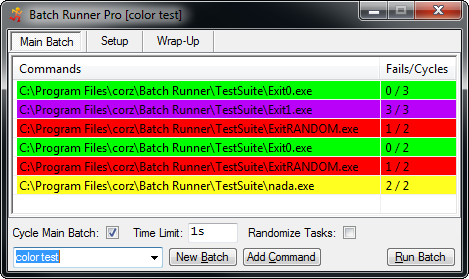
So the list has to now display report colors AND selection colors. Here's how to easily see both..
To view the current selection, simply activate the list. The easiest way to do this, without destroying the actual selection, is to click on the column headers.
To see the report colors again, simply click outside the list, for example, in the batches drop-down. Deselecting a row (Ctrl+Click) also reveals its report colouring. Note, even in report view, you can quickly deselect an item with a Ctrl-Click.
Because of this simple functionality, if you are working with selections and click "Run Batch", the list immediately switches to report view so you can watch all the pretty colors.
You can also instruct Batch Runner to ignore any current selections and always run all the tasks in the batch. Whatever your working style, Batch Runner has an option!
Windows Standard List Selection Behaviour.
You can use standard Windows Crtl+, Shift+ and Ctrl+Shift modifiers to select and deselect commands in the task list.
Error-Level Actions.
Batch Runner can respond in two ways to commands returning failure (non-zero) results. Either a) Notify & Log the error and continue (positive return values) or b) Notify & Log the error and abort the batch run immediately (negative return values), move on to wrap-up tasks.
Exit Code Ranges.
If Batch Runner has been instructed to abort the main batch on task failure, you can also specify a range of exit codes which cause the abort, e.g. "
-100,-50", meaning exit codes from anywhere between-100and-50(inclusive) trigger abort.In the above example, tasks failing with an exit code of
-1or-2or-49or-101, and so on, would not cause the batch to abort.This gives you an even finer-grained control over the Batch Runner's responses
Live Logging.
Rather than dump a log file at the end of the entire operation, Batch Runner will update the log with each task, enabling you to keep an eye on the results. Even the current task will be in the log, minus result, of course.
During long tests with no output, Batch Runner will periodically leave a "mark" in the log; technically, it is a period ".". These periods are removed once the task completes. This is so your file system always considers the log file, "live".
Log Timestamps.
Each log entry can be prefixed with a Time-Stamp. You can also configure the separators for this, if you desire.
Quite a few other aspects of log output are also configurable, as well as more intuitive and easy-to-use, also a lot more information is logged. See your automatically-updated ini file and generated log for more details!
And don't forget you can use @Tokens in the log name, so you can have Time-Stamped log names, too. Or auto-append existing logs, whatever suits you best.
Instant Logging
The View Log menu item will work from the moment a log is created, so you can easily get to your log from Batch Runner's tray menu. If you select a new batch for which a log already exists, again, the menu item will be available immediately - no need to go fishing about in your file system.
Configurable executable types.
You can drag and drop .bat, .com, or whatever you like (as well as regular .exe files, of course) onto Batch Runner's list to automagically add new tasks. Previously you could only drop .exe files. You can use whatever you like when entering commands with the add command dialog.
Smart Auto-Size Columns.
Batch Runner does a pretty good job of auto-sizing your columns to fit the content into the GUI, and importantly, keeping them that way when you resize the window. You can also override the size of the counter column and let Batch Runner do the rest, or disable this, and keep your column widths static no matter what you do to the GUI.
You can drag the columns around (by their headers) to re-arrange them.
Title Bar Timer.
This is optional, of course. Batch Runner will update the time, live, for the entire duration of the batch run, even during long tasks.
New Context Options..
Duplicate and Rename Batch options added to the Batches Drop-Down.
Added batch list context menu option to run the currently selected command. Just like running the main batch, you get a color-coded result in the GUI - handy for testing commands. Note, Batch Runner will not attempt to hide the windows of launched processes during a single command run, even if that is the default setting for batches.
Advanced GUI Controls For Advanced Users..
A new user, looking to create a new batch will click the "New Batch" button and be presented with a dialog in which to enter a name,
and they are done. Fair enough. An advanced user will type the new name directly into the control and then click the "New Batch" button. The new batch is created and displayed instantly, bypassing tedious dialogs altogether.
Same story for the Rename and Duplicate batch controls. More time-saving features for folk just looking to get the job done!
New HotKeys:
<NUMPAD+> = Add new task
<Delete> = Delete the currently selected task(s)
<Enter> = Run the current batch
<Pause/Break> = Pause/Resume batch run
<Ctrl+A> = Selects all tasks in the list
<Ctrl+L> = View log file for current batch
<Ctrl+P> = Edit preferences (ini)
<NUMPAD-> = Abort batch runYou will probably spot how batch run control is all together at the right hand side of the keyboard. Not being entirely sure how handy this is on Tenkeyless keyboards, I made the keys configurable. Knock yourself out!
Portable Batches.
Batch Runner has always had the capability of running in a portable state**. Now, so can your batches! Batch Runner will automagically and transparently transform paths of commands within the batch runner folder (or sub-folder). This won't interfere with drag and drop commands or clipboard paths but will enable you to distribute entire test suites, Batch Runner included, setup and ready-to-go,
Run Single Commands.
You can test individual tasks, simply select the "Run This Command" option from the context menu. Batch Runner will run the command and notify you of its success/fail state.
INI Everything!
MANY new options in your ini file, things once hard coded are now preferences, enjoy!
Task Re-ordering.
Select "Edit List" from the list's context menu to get a dialog where you can re-order and sort your tasks list.
More command-line options.
You can still run and load batches from the command-line. But now you can create them, too. Simply send the name of your new batch on the command line and have it created and loaded, ready to accept new tasks.
c:\path\to\Batch Runner.exe My-New-Batch
You can also use this same functionality, as ever, to load existing batches directly into a newly launched Batch Runner GUI.
Auto-Name Tasks..
If you have a lot of commands to add, or have no need for names for your tasks, you can enable auto-naming, and let Batch Runner take care of it, dragging and dropping to your heart's content!
Backward-compatible..
Batch Runner will update your Batch Runner ini file with all the new preferences and features, leaving your old settings and batches intact.
Same goes for all future versions of Batch Runner. Your ini is always up to date with the latest goodies, but with all your old preferences.
Tracing..
Batch Runner has the ability to
traceoutput from individual commands (aka. tasks, programs) and feed it to a trace file."ShellExecute" Capabilities..
"
shellex" command switch which will run the command using the system's ShellExecute mechanism. You can use this to launch URLs and more, e.g..shellex|https://corz.org/windows/software/batch-runner/batch-runner-pro.phpChain commands..
You can access the exit code of the previous command with
@exitcode, and use it as a parameter in the next command, e.g..e.g. c:\path\to\app.exe /foo @exitcodeBatch Runner as command runner..
Use Batch Runner to run any old command or program, and make use of its built-in logging and trace capabilities.
Added CLI Switches..
New "launch" command-line switch you can use to launch a batch in the GUI from the command-line.
c:\path\to\Batch Runner.exe launch
Also "launchdie" which does exactly the same as "launch" except, you guessed it, dies at the end of the batch run (assuming it ends).
Even more command-line options:
You can still run and load batches from the command-line. But now you can create them, too. Simply send the name of your new batch on the command line and have it created and loaded, ready to accept new tasks.
c:\path\to\Batch Runner.exe My-New-Batch
You can also use this same functionality, as ever, to load existing batches directly into a newly launched Batch Runner GUI.
When loading or creating batches in the GUI from the command-line, it's usually best to enclose any batch names containing spaces in "quotes", e.g..
c:\path\to\Batch Runner.exe "My New Batch"
This isn't necessary when running batches from the command line with "launch", "run" or "launchdie", this would be fine..
c:\path\to\Batch Runner.exe launch My New Batch
Auto-Refreshing Log:
During long tasks, Batch Runner can keep your log file updated, which can be useful when incorporating with other systems. A refresh interval can be set, after which time, Batch Runner will append a simple "." (dot) to the current log line (altering its update time, size and checksum). When the task is complete, these dots are removed and the result takes their place, as if nothing happened.
Online Version Checking:
Batch Runner can optionally check for newer versions of itself and optionally direct you to the download page.
You can also specify the interval between checks, which are performed when Batch Runner quits. The first time it attempts this, it will ask you to specify the interval between checks, in days. If you wish to disable version checking altogether, enter 0. It is nifty, though!
LOTS of under-the-hood improvements both inside and out.
If it's possible to anticipate a user behaviour or best option, Batch Runner will. If there is some way to shave seconds off your workflow, Batch Runner will do it.
For example, if you delete a batch from the batches drop-down, Batch Runner won't simply load the next batch, it will load the previous batch, up to a total of one hundred batch selections being remembered internally. Every little helps!
I also added a minimize button to the main GUI (it's often easier than heading to the tray!)
MANY new options in your ini file, things once hard coded are now preferences, enjoy!
Added a new option to the Batches context menu - "Save As AutoRun", which saves the current batch as a clickable command that will launch Batch Runner with the current batch, run it and then die. You can also select from foreground or background operation.
Batch Runner will resolve shortcuts (.lnk files) of dropped items.
For 64 bit Windows.
All the dialogs remember their size and positions (except minor prompts), and along with a few other preferences, this information is stored in Batch Runner.ini. In there, you can also change some of Batch Runner's behaviours..
User Preferences
All Batch Runner's preferences are stored in a standard, plain-text Windows ini file, named Batch Runner.ini. Simply drop it into any decent text editor and edit away. If you mess up, you can delete/rename the file, and Batch Runner will drop a new one into place, automatically.
Main prefs are stored in the [Batch Runner] section. All other ini sections will be your actual batches.
You can create and delete batches, as well as add, edit and delete their commands from inside the Batch Runner interface, so there's no real need to edit them in the ini file. But if you prefer that, it's easy enough; the batches are in a very simple format..
The section [name] is the name of the batch, and each preference is one single command in the form, name=command. For example..
[compaction example]

		compress reports=compact.exe /C /S I:\work\documents\reports\*.log

		uncompress reports=compact.exe /U /S I:\work\documents\reports\*.log
Portable operation
Batch Runner will happily operate in a completely portable state. Basically, if there's an ini file next to Batch Runner, it will use it, and if there's not, it will use the one in your Application Data folder (in your user folder). In other words, if you want portable operation; simply place a Batch Runner.ini file next to Batch Runner.exe.
You can run multiple instances of Batch Runner, too, even all at once, with completely different settings for each instance.
To automatically setup a portable installation: Run Batch Runner with the "portable" switch, e.g.
C:\Program Files\corz\Batch Runner\Batch Runner.exe portable
Batch Runner will then setup itself to run in portable mode, which basically creates a new ini file in the program's folder and sets that as the logging location.
Command-line operation
When launched, Batch runner usually loads the last-used batch and presents a graphic interface for you to work with your batches, but you can override this behaviour on the command-line.
Batch Runner accepts two (optional) command-line parameter; 1) the special switch: run, which instructs Batch Runner to run the batch immediately without the GUI - you can script and schedule Batch Runner, even run it from inside Batch Runner - think about it; and 2) the name of the batch e.g. to immediately run a batch called "test batch", use..
Batch Runner.exe run test batch
NOTE: Spaces in batch names are not a problem.
To immediately run the current (last-used) batch job (stored as current_batch inside Batch Runner.ini), use..
Batch Runner.exe run
To startup with a different batch (in this example, a batch called "some batch") loaded and ready-to-use, do..
Batch Runner.exe some batch
NOTE..
- Setting a batch on the command-line won't affect your
current_batchsetting, which is only set when you manually select a batch from the batches drop-down.
- If you name one of your batches "run something", don't expect it to be able to load from the command-line!
For example..
As well as creating "test suites", there are many other real-world uses for Batch Runner.
For example, because many newly-installed applications, have a bad habit of stealing important file associations, I keep windows registry (.reg) files with all my own custom file associations, along with myriad context commands, custom icons, and so on. Every so often I need to merge all four of these (one each for text types, image types, multimedia, and miscelleneous types), and then once complete, run Loki's ever-useful icon rebuilder (also available inside the checksum distro).
After lots of practice, and by keeping shortcuts to these reg files in my favourites menu, I can do the whole lot in under five seconds. But with a single Batch Runner shortcut with this command-line (aka. "Target")..
"C:\Program Files\corz\Batch Runner\Batch Runner.exe" run reset file types
I can do it all with one click, thereby saving ten clicks off my daily RSI allowance. Inside my Batch Runner.ini, is a batch very like this..
[reset file types]

	image types=C:\WINDOWS\regedit.exe /s "I:\work\custos\reg\context\image types.reg"

	miscy types=C:\WINDOWS\regedit.exe /s "I:\work\custos\reg\context\miscy.reg"

	multimedia types=C:\WINDOWS\regedit.exe /s "I:\work\custos\reg\context\multimedia.reg"

	text types=C:\WINDOWS\regedit.exe /s "I:\work\custos\reg\context\text types.reg"

	rebuild icons=C:\Program Files\ui tools\RebuildIcons.exe
.bat files
As well as regular programs, you can also add.bat (aka "Windows Batch Files", or "shell scripts") files. These days, most people have their .bat files' default action set to "Edit", preventing the inadvertant execution of malicious scripts. However, this can make it difficult when you actually want to run a .bat file, unattended.
Using Batch Runner, you simply insert the path to the .bat file, and run the batch like any other; making it a doddle to script and schedule .bat files, even long lists of them, without the need for unsafe default file actions.
Scheduling Batch Runs
It's easy to setup a schedule for a particular batch; Control Panel >> Scheduled Tasks >> Add New Task, browse for Batch Runner, continue to the advanced properties, add your batch, and so on. I find the whole experience painfully unproductive, and prefer to use the command-line. The above example, as a scheduled task, could be setup like so (in a command console/shell/Run Command/etc.)..
schtasks /create /sc daily /tn "daily file types reset" /st 07:00:00 /tr "\"C:\Program Files\corz\Batch Runner\Batch Runner.exe\" run reset file types" /ru USERNAME /rp MyPa5sWw04d
Note: although extremely likely to be split into two lines or more in your web browser, the entire command must be entered into your console as one single line, replacing "USERNAME" and "MyPa5sWw04d" with your own details, of course. Easier; drop the whole command into a text file, give the file a .cmd extension, and then you can edit and run it whenever you want to set a scheduled task the easy way.
Itstory:
This got to big to include on the page. You can get to the latest version.nfo in a pop-up windoid, here, or via a regular link at the top of this page.That's it!
Hopefully you find Batch Runner intuitive to operate, and you won't have any problems running batches without more help from me; but if you do have any questions or issues, or find a bug, please feel free to leave a comment below or even drop me a mail.
Download
Download and use Batch Runner, for free..click to see zip archive contents
# made with checksum.. 64-bit edition. # from corz.org.. https://corz.org/windows/software/checksum/ # #sha2#Batch Runner.zip#2026.11.08@09.49:13 84471b977a0fab94b07b43247cc7491c6016597703ba27b4678590c0a94697c6 *Batch Runner.zip

Welcome to the comments facility!
Is it possible to run the same program more than once using this?
I need to be able to stop one program before i start another. can i do that? how?
I can see the commands in the GUI, but where do I find the .ini file to edit. Or have I got this completely wrong.
Note, you can edit commands from inside the GUI, too - right-click the list for options.
;o)
Brilliant!
Dear MrX,
I'm working for a company called FEI. I'm thinking of using your batch runner to start tests. One thing I'm missing is a repeat counter in the main window. I like to run a batch over and over again(x times), Is this something that you can create?
Best Regards,
John Veltman
Very fast program, hard to live without it once you've tried it... Thanks for maintaining it!
no coment
HI man, very nice and handy tool, thank you for that.
Is there way to show Name of line instead of direct command ?
Example I have very long commands with only few differences, it is not clear and transparent, so showing lines Names I can define, would be great.
Thank you