Batch Runner FREE
 Run multiple programs in a batch..
Designed for testing, useful for all-sorts!
Welcome to Batch Runner, a simple program that enables you to run lots of other programs, in one big batch.
While originally designed for running test suites on in-development applications, Batch Runner has proven useful for all sorts of jobs where you need to run two or more programs one after another, or the same program over and over with different parameters or switches.
How does Batch Runner work?
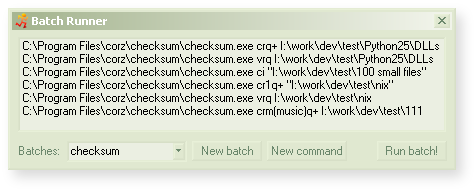
Batch Runner's operation is very simple. The main GUI/window is a list of commands in the current batch, and a few controls for you to switch between different batches, run the batch, and so on.
Batch jobs are stored in Batch Runner's ini (configuration) file, and can be created, edited and deleted there, or from within the main GUI. You simply select a batch, and which commands you would like to run (all, by default), and then click Run batch!.
You can configure and store any number of different batch jobs, with any number (well, thousands) of commands within each batch. Commands (program paths, with any optional switches and parameters) run consecutively; when the first completes, Batch Runner starts the next, and so on, until all the selected commands have completed.
Need more power?
Check out Batch Runner Pro!
A log of each batch is created at the end of the job, recording the name of the batch processed, status of each command; success, fail, exit code, error code, time taken, etc.
Click the New command button to add a new command to the current batch. The add new command.. dialog appears for you to enter whatever commands and parameters you need, as many as you need.
You can drag and drop applications, folders, and files onto this dialog to have their paths pasted automatically into the input - building complex commands with switches and optional parameters is quite painless. You can even drag in multiple items (Batch Runner will put spaces between the items, so you don't have to).

The command list has a context menu; you can right-click it and do stuff, edit selected commands, delete commands, and so on. Between all these controls, you should be able to do pretty much everything you need.
Apart from delete batches, that is. To do that, hold down the SHIFT key when Batch Runner is active, and the New batch button will switch to a Delete batch button, which will do exactly that. Careful now.
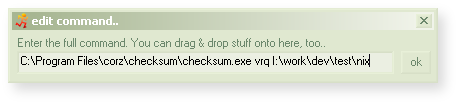
Note: the edit dialog behaves exactly like the add new command.. dialog; you can drag and drop stuff onto it, etc. It also shares the same dimensions and position, so wherever you put one, the other will also be, the next time you use it.
All the dialogs remember their size and positions (except minor prompts), and along with a few other preferences, this information is stored in Batch Runner.ini, which lives next to Batch Runner itself. In there, you can also change some of Batch Runner's behaviours..
User Preferences
All Batch Runner's preferences are stored in a standard, plain-text Windows ini file, named Batch Runner.ini. Simply drop it into any decent text editor and edit away. If you mess up, you can delete/rename the file, and Batch Runner will drop a new one into place, automatically. These are the preferences which you may usefully alter..
log_path=Batch Runner.logName of the log file. Leave this blank to disable logging.
Note: You can use a full path here, if you don't want to log into the program's folder.
You can also use@tokensin thelog_pathpreference. These will automagically convert to real values when the log is written. Available tokens..
@DesktopYour Desktop.
@UserDirBatch Runner folder in your User Application Data folder (aka. "AppData").
@batchThe name of the current running batch.
@sec, @min, @hour, @mday, @mon, @year, @wday, @yday, @now, @dateVarious time and date tokens, in order, current; seconds, minutes, hour, day of month, month, year, day of week (1-7, Sun to Sat), day of year (1-366, 355 if a leap year). All values are numeric.
There are also a couple of special short-format tokens;
@now, which translates to the full date and time in the format "year-month-day @ hour.min", e.g.2007-09-21 @ 22.09, and@datewhich is simply "year-month-day", e.g.2007-09-21. They can be combined in any way you choose.Note: If you use dynamic tokens in your log, you can do all sorts of interesting things, create batch-specific logs, auto-rotating logs, and more. It also means you will create more logs. For most people, simply using a single file name is the best approach; Batch Runner will append all new logs to that one file.
select_all=trueWhen you select a new batch, all the commands are automatically selected, ready to run.
show_tips=trueHelpful pop-up ToolTips for all the controls.
notify=trueBatch Runner will pop up a notification when complete. Or not.
warn_delete_batch=trueWarn about deleting batches.
warn_delete_command=trueWarn about deleting commands.
min_width=430Minimum width of the main gui - it will snap back to this.
430 pixels is the recommended minimum width.
min_height=96Minimum height of the main gui - it will snap back to this.
96 pixels is the recommended minimum height.
All other ini sections will be your actual batches. You can create and delete batches, as well as add, edit and delete their commands from inside the Batch Runner interface, so there's no real need to edit them in the ini file. But if you prefer that, it's easy enough; the batches are in a very simple format..
The section [name] is the name of the batch, and each preference is one single command in the form, name=command. For example..
[compaction example]

		compress reports=compact.exe /C /S I:\work\documents\reports\*.log

		uncompress reports=compact.exe /U /S I:\work\documents\reports\*.log
Portable operation
Batch Runner will happily operate in a completely portable state. Basically, if there's an ini file next to Batch Runner, it will use it, and if there's not, it will use the one in your Application Data folder (in your user folder). In other words, if you want portable operation; simply place a Batch Runner.ini file next to Batch Runner.exe.
You can run multiple instances of Batch Runner, too, even all at once, with completely different settings for each instance. No problem.
Command-line operation
When launched, Batch runner usually loads the last-used batch and presents a graphic interface for you to work with your batches, but you can override this behaviour on the command-line.
Batch Runner accepts two (optional) command-line parameter; 1) the special switch: run, which instructs Batch Runner to run the batch immediately without the GUI - you can script and schedule Batch Runner, even run it from inside Batch Runner - think about it; and 2) the name of the batch e.g. to immediately run a batch called "test batch", use..
Batch Runner.exe run test batch
NOTE: Spaces in batch names are not a problem.
To immediately run the current (last-used) batch job (stored as current_batch inside Batch Runner.ini), use..
Batch Runner.exe run
To startup with a different batch (in this example, a batch called "some batch") loaded and ready-to-use, do..
Batch Runner.exe some batch
NOTE..
- Setting a batch on the command-line won't affect your
current_batchsetting, which is only set when you manually select a batch from the batches drop-down.
- If you name one of your batches "run something", don't expect it to be able to load from the command-line!
For example..
As well as creating ad-hoc "test suites", there are a number of real-world uses for Batch Runner. For example, because many applications, especially newly-installed applications, have a bad habit of stealing important file associations, I keep windows registry (.reg) files with all my own custom file associations, along with myriad context commands, custom icons, and so on. Every so often I need to merge all four of these (one each for text types, image types, multimedia, and miscelleneous types), and then once complete, run Loki's ever-useful icon rebuilder (also available inside the checksum distro).
After lots of practice, and by keeping shortcuts to these reg files in my favourites menu, I can do the whole lot in under five seconds. But with a single Batch Runner shortcut with this command-line (aka. "Target")..
"C:\Program Files\corz\Batch Runner\Batch Runner.exe" run reset file types
I can do it all with one click, thereby saving ten clicks off my daily RSI allowance. Inside my Batch Runner.ini, is a batch very like this..
[reset file types]

	image types=C:\WINDOWS\regedit.exe /s "I:\work\custos\reg\context\image types.reg"

	miscy types=C:\WINDOWS\regedit.exe /s "I:\work\custos\reg\context\miscy.reg"

	multimedia types=C:\WINDOWS\regedit.exe /s "I:\work\custos\reg\context\multimedia.reg"

	text types=C:\WINDOWS\regedit.exe /s "I:\work\custos\reg\context\text types.reg"

	rebuild icons=C:\Program Files\ui tools\RebuildIcons.exe
.bat files
As well as regular programs, you can also add.bat (aka "Windows Batch Files", or "shell scripts") files. These days, most people have their .bat files' default action set to "Edit", preventing the inadvertant execution of malicious scripts. However, this can make it difficult when you actually want to run a .bat file, unattended.
Using Batch Runner, you simply insert the path to the .bat file, and run the batch like any other; making it a doddle to script and schedule .bat files, even long lists of them, without the need for unsafe default file actions.
Scheduling Batch Runs
It's easy to setup a schedule for a particular batch; Control Panel >> Scheduled Tasks >> Add New Task, browse for Batch Runner, continue to the advanced properties, add your batch, and so on. I find the whole experience painfully unproductive, and prefer to use the command-line. The above example, as a scheduled task, could be setup like so (in a command console/shell/Run Command/etc.)..
schtasks /create /sc daily /tn "daily file types reset" /st 07:00:00 /tr "\"C:\Program Files\corz\Batch Runner\Batch Runner.exe\" run reset file types" /ru USERNAME /rp MyPa5sWw04d
Note: although extremely likely to be split into two lines or more in your web browser, the entire command must be entered into your console as one single line, replacing "USERNAME" and "MyPa5sWw04d" with your own details, of course. Easier; drop the whole command into a text file, give the file a .cmd extension, and then you can edit and run it whenever you want to set a scheduled task the easy way.
Itstory:
This got to big to include on the page. You can get to the latest version.nfo in a pop-up windoid, here, or via a regular link at the top of this page.That's it!
Hopefully you find Batch Runner Pro intuitive to operate, and you won't have any problems running batches without more help from me; but if you do have any questions or issues, or find a bug, please feel free to leave a comment below or even drop me a mail.
Download
Download and use Batch Runner, for free..click to see zip archive contents
# made with checksum.. point-and-click hashing for windows. (64-bit edition) # from corz.org.. http://corz.org/windows/software/checksum/ # #md5#Batch Runner Free.zip#2013.12.15@05.40:22 55d3acbee8c3ac3126e26495e6207843 *Batch Runner Free.zip #sha1#Batch Runner Free.zip#2013.12.15@05.40:22 c3f1bbe447dcb8d85c17635f652af51d391c7a1b *Batch Runner Free.zip

Welcome to the comments facility!
Hello,
I added 3 commands into one batch.
When i run the batch it only executes the first command. It never executes the second of third command.
Batch Runner keeps running but basically does nothing.
Is it possible to run the same program more than once using this?
I need to be able to stop one program before i start another. can i do that? how?
I can see the commands in the GUI, but where do I find the .ini file to edit. Or have I got this completely wrong.
Note, you can edit commands from inside the GUI, too - right-click the list for options.
;o)
Brilliant!
Dear MrX,
I'm working for a company called FEI. I'm thinking of using your batch runner to start tests. One thing I'm missing is a repeat counter in the main window. I like to run a batch over and over again(x times), Is this something that you can create?
Best Regards,
John Veltman
Very fast program, hard to live without it once you've tried it... Thanks for maintaining it!
no coment
HI man, very nice and handy tool, thank you for that.
Is there way to show Name of line instead of direct command ?
Example I have very long commands with only few differences, it is not clear and transparent, so showing lines Names I can define, would be great.
Thank you